Wireshark on Kali Linux

Kali Linux comes with Wireshark pre-installed. This is the full-fledged GUI application.
Installation (if not already installed)
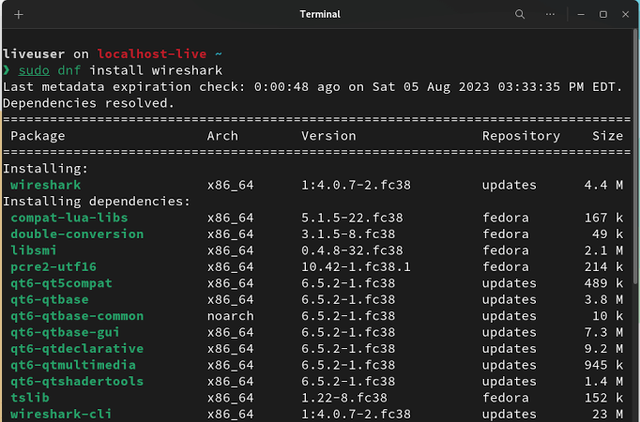
It's almost certainly already there; if not, install it this way:
sudo apt update
sudo apt install wireshark
During installation, you might get a pop-up asking if non-superusers should be allowed to capture packets. For a personal security distro like Kali, it's generally safe to select "Yes."
Launching Wireshark

You can find it in the application menu under Sniffing & Spoofing or launch it from the terminal:
wiresharkUsing Wireshark
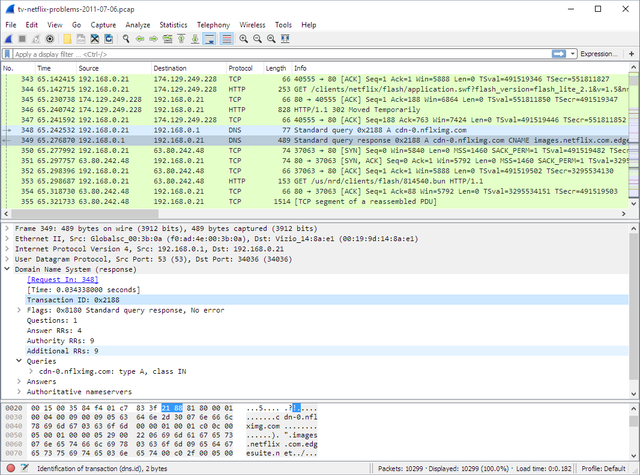
1. Start Wireshark: On the startup screen, you'll see a list of your network interfaces (e.g., eth0, wlan0). The line graph next to them shows live traffic.
2. Select Interface: Click the interface you want to capture on (e.g., wlan0 for Wi-Fi).
3. Stop Capturing: Click the red square button in the toolbar.
4. Filtering: Use the filter bar to narrow traffic. For example:
http: Show only HTTP traffic
tcp.port == 80: Show traffic to or from port 80
5. Inspecting Packets: Click on a packet to view its details in the middle panel. The bottom panel shows the raw packet bytes.
4. Using dumpcap and tshark (Command-Line in Kali)
Wireshark comes with two powerful terminal tools:
- dumpcap: A small, lightweight tool for capturing packets. It's what the Wireshark GUI uses under the hood.
- tshark: A command-line network protocol analyzer.
You can use them like this:
sudo dumpcap -i wlan0 -w capture.pcap
sudo tshark -r capture.pcap -T fields -e ip.src -e ip.dst -e tcp.port
Capture Summary: Key Differences & Recommendations
| Feature | Kali GUI (Wireshark) | Termux CLI (tshark) |
|---|---|---|
| Scope of Use | Full Graphical User Interface | Command-Line Interface |
| Ease of Use | Excellent for beginners and diagnostics | Requires CLI knowledge |
| Capture Ability | Full Access to all Interfaces | Limited without root access |
| Analysis | Visual, intuitive, deep dive | Powerful but focused on command-line analysis |
Recommendation
Test for:
Primary analysis, deep inspection, learning
On-the-go capture (Android remote analysis)
Note: Use Kali Linux as your main machine for serious packet analysis with the full Wireshark GUI.
Use Termux with tshark for quick, on-the-go analysis on your Android device, especially if your PCAP file is routed. Its best use is on a non-rooted phone to analyze existing .pcap files.
Always remember to only capture on networks you have permission to monitor. Unauthorized packet capturing is illegal in most jurisdictions.
Comments